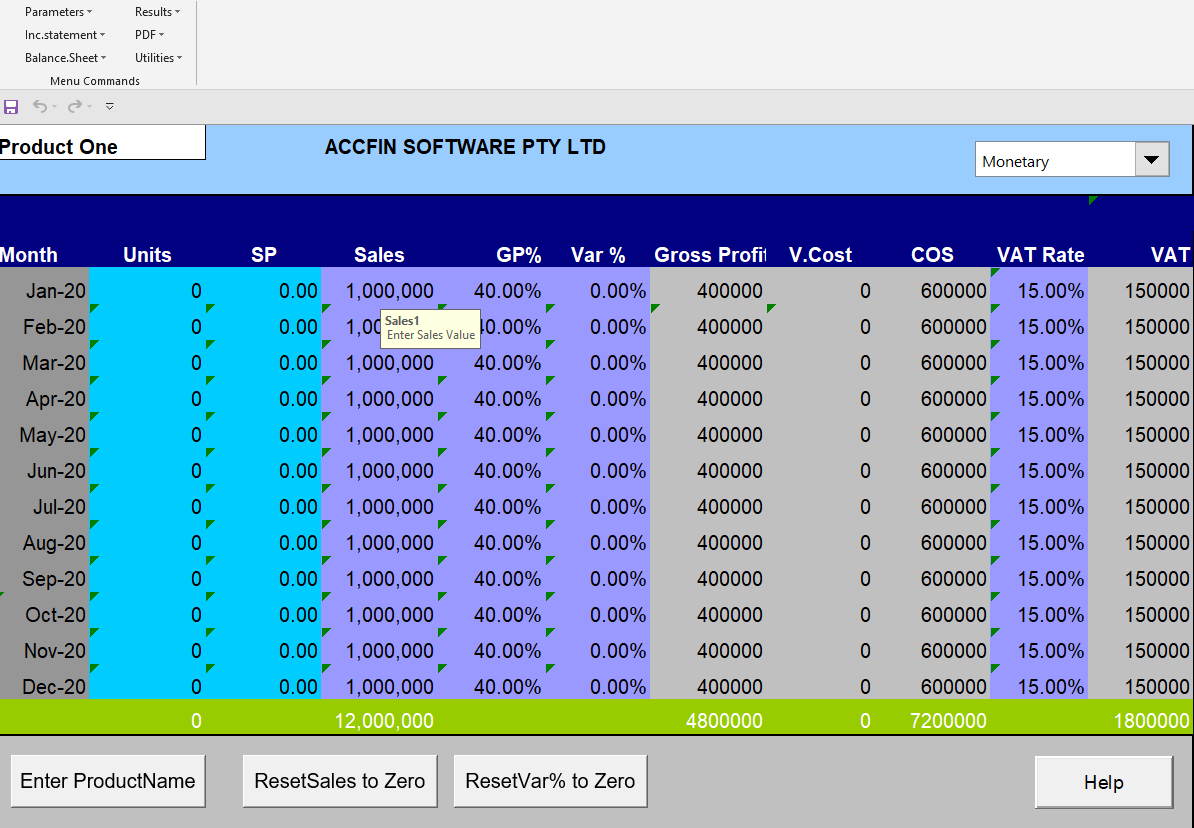
You may use just one or up to 11 screens to enter Sales. If you have many sales products we suggest that you break them down into categories and use one sheet per category or you can enter the totals from another spreadsheet. Where your model has different gross profit percentages it is best that you create different products with the different percentages.
As a rule when the top cell of the sakes column is entered the values will copy down unless there is an overwritten cell. The buttons at the bottem will allow you to reset various values.
Parameters
For each sales sheet there are Parameters which may be set:
- to select the calculation of sales either by entering sales units and selling price or by using a monetary value.
- to select the type of organization either a trading organisation or a service organisation. A service organisation will make the revenue have a gross profit percentage of 100%
Monetary Value
Make sure that Monetary Value displays in the selection box where you want to enter the Monetary values for a particular sales month. i.e. currency values. This is the default setting.
Units
Quantity and Unit Price
Make sure Unit displays in the selection box to use the quantity and unit price option.
Trading
This is default setting and is to be used where goods are purchased and resold. The gross profit percentage needs to be entered in the GP% column.
Service
The Service industry setting relates to service type firms that charge fees for consulting services. When this setting is selected it is not necessary to enter the gross profit percentage as the Gross Profit becomes the revenue received i.e. 100%
Variable Cost Percentage
Or Var%
This is the expenditure directly related to sales which can be calculated as a percentage of sales. In this case the sales of the individual product sheet will be used. E.g. you may have a product category that requires delivery which can be calculated as a precentage of sales or it may be a royalty payable on a particular product category.
VAT
Rate % / Input Field
Enter the VAT rate percentage here. This percentage is multiplied by the sales to calculate VAT. To adjust VAT % for an individual sales sheet adjust this percentage on the sheet. If you wish to adjust VAT globally select Vat Calculation from the taxation menu.